
For years, Excel checkboxes were cosmetic and now they’re functional, changing spreadsheets into something users can interact with, explains Traci Williams
In 2024, Microsoft gifted us Excel fans a real treat… checkboxes.
Now, that might not sound exciting to a non-spreadsheet person, but if you’ve ever built a tracker, checklist, approval sheet, or dashboard, then you’ll know why this matters.
Because for years, Excel technically had checkboxes… but also… not really.
Now, inserting checkboxes has became super, super simple.
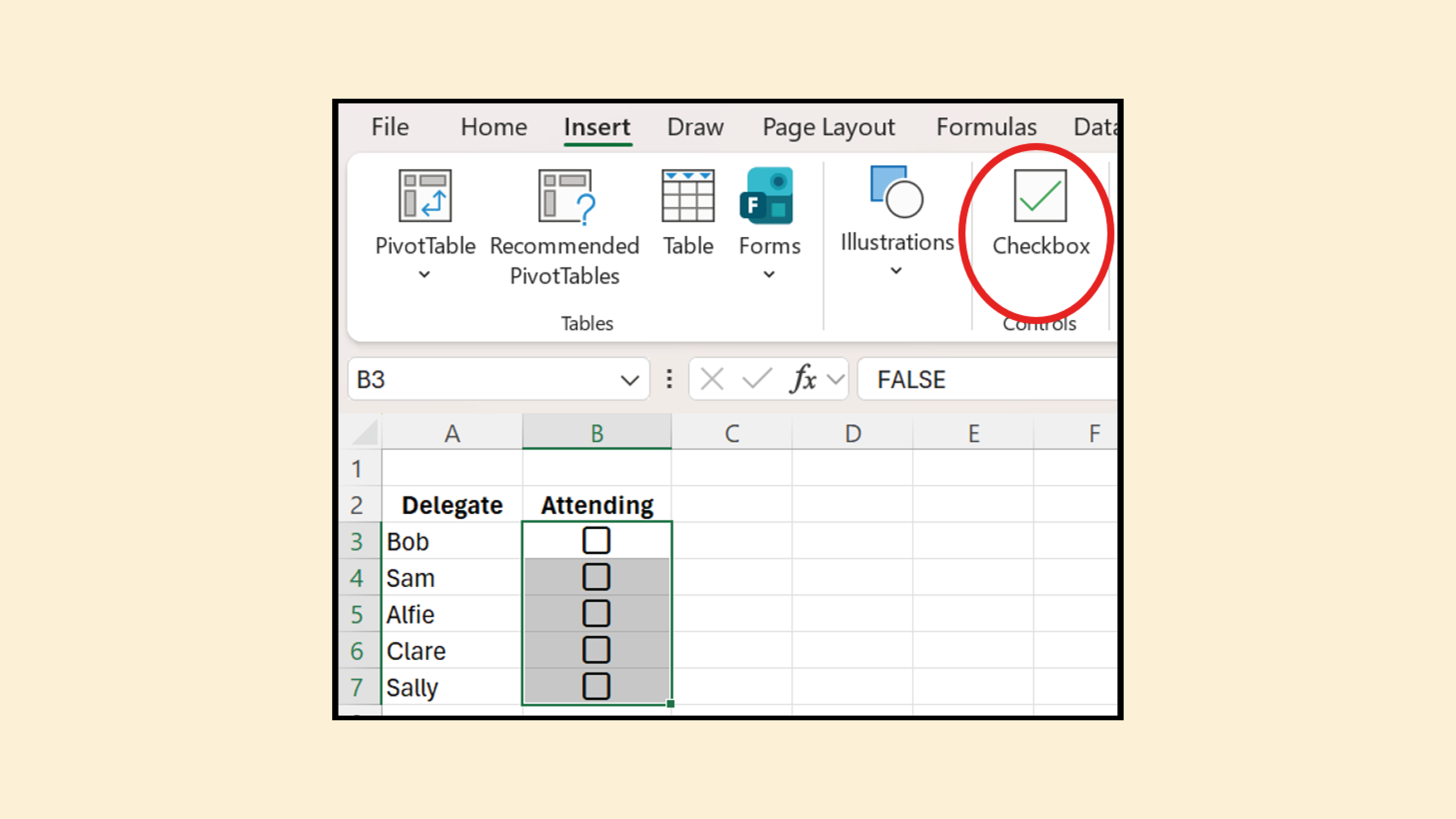
You simply highlight a range of cells >> ‘Insert’ ribbon >> Select ‘Checkbox’.
The checkboxes will be entered:
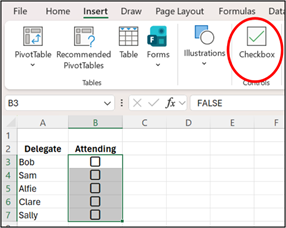
The checkboxes are inserted as an object within the cell AND perform as part of the cell too. So, when we format the cell itself, this formats the checkbox.
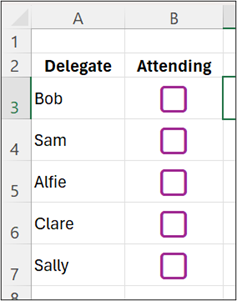
In the example below, you can see that the rows have been made bigger, and I have also formatted the text alignment, font size, and font colour of these cells, so the checkboxes are now centred and coloured purple too.
Why This Is Such a Gift
The real beauty of these new checkboxes is that the cell will have a value of TRUE or FALSE (linked to whether the box is ticked or not), so it can now be used directly within any formulas or conditional formatting.
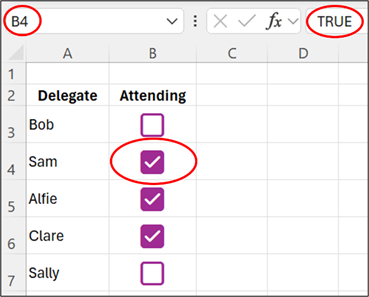
In this example, the conditional formatting is highlighting the entire row, based on whether the box is ticked or not (using the value of the cells in column B):
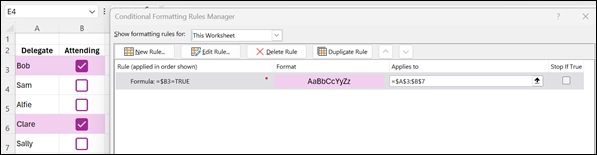
No linked cells needed, as the checkbox is the logic.
Things That Suddenly Became Easy
1. Filter completed items
Just filter by TRUE/FALSE – that’s it.
2. Count progress
=COUNTIF(B2:B7,TRUE)
Instant completion tracker.
3. Select records to process
=FILTER(A2:B7,B2:B7=TRUE)
Tick rows → generate a report automatically.
4. Works perfectly in Tables
- Add a new row → checkbox appears
- Sort → stays aligned
- Filter → behaves properly
This alone saves so much frustration.
The Automation Superpower
This is where it becomes powerful.
As the checkbox is real data, Excel can now read user decisions. You can build sheets where users simply tick boxes and Excel reacts:
- Tick invoices → create PDF list
- Tick staff → send emails
- Tick tasks → update dashboard
- Tick products → export selection
Previously this required helper columns and complicated setups, but now the interaction is the instruction.
A Few Limitations (So You’re Not Caught Out)
Currently:
- Only works in modern Excel (Microsoft 365 / Excel Online)
- Older versions of Excel will just see TRUE/FALSE
- Tick style can’t yet be customised
The compatibility is actually quite nice, whereas at least the older Excel can still read the data correctly and it doesn’t display as errors.
Conclusion
For years, Excel checkboxes were cosmetic, and now they’re functional. This may sound like a small feature… but it changes spreadsheets from something users look at into something they can interact with.
Excel didn’t just gain a checkbox, it gained a user interface.