
The generic LinkedIn invitation does not enhance your personal brand, nor encourage people to connect with you says Brenda Bernstein
At a recent social event, I met a master’s degree student who wanted to connect with me on LinkedIn. I found her profile on my handy mobile app and handed her my phone so she could confirm I had the correct person. Before I knew what was happening, she had pushed the “Connect” button. I had unwittingly sent out (gasp!) a cookie-cutter invitation on LinkedIn.
I’ll tell you a secret: I once did this myself. That big blue Connect button is just too tempting!!
The generic LinkedIn invitation is a pet peeve of most LinkedIn experts and business people on LinkedIn, prompting such snarkily written articles as Why I Didn’t Accept Your LinkedIn Request by Robert P. Doran.
While I realize that following instructions will not in a million years prevent you from ever sending out a generic LinkedIn message again, I hope they will at least decrease the occurrence of this social gaffe.
Initiating a Connection the Right Way
Prior to LinkedIn’s recent interface update, it was easy to mistakenly send a generic “I’d like to join your LinkedIn network” message from your desktop app. With the new LinkedIn, you get a nudge not to go down this road. After clicking on the Connect button
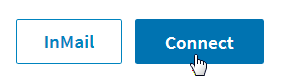
you’ll have a choice of whether to Add a note or Send now.
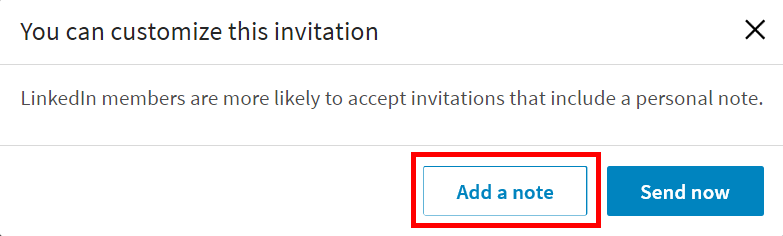
Click Add a note and you’ll have this nice blank box to fill in:

Write your note (300 characters) and send!
If you don’t choose to add a note and accidentally hit “Send now,” your connection will get an email that looks something that looks like this:
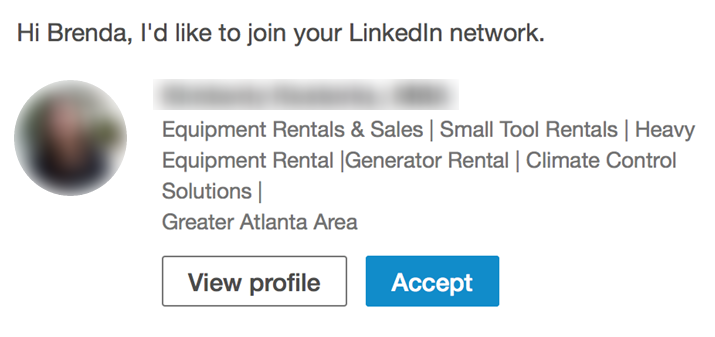
What would someone’s incentive be for accepting such a generic invitation? Most people won’t.
How to Send a Mobile Invitation the Right Way!
When I deliver LinkedIn workshops, I always make a point of teaching people how to send a customized, personal invitation from their phones, so as not to send the dreaded “I’d like to join your LinkedIn network” canned message. I give careful instructions and invite people to practice by connecting with me. Nine times out of 10, someone in the audience pipes up, “Oops! I just sent you a generic invitation by mistake!”
Despite the potential futility of doing so, I will now explain how to personalize your invitations on your mobile device.
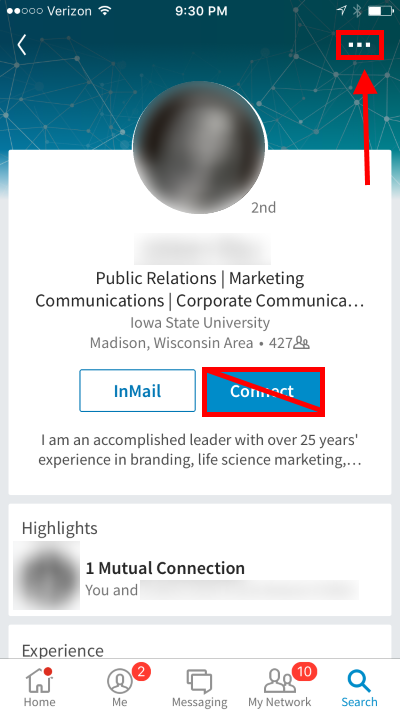
To send a customized invitation via iPhone or Android, go to your contact’s profile and click the 3-dot “…” button in the upper right (tie your hands behind your back and do NOT click CONNECT!! LinkedIn will not warn you on your phone that you’re about to send a generic invitation):
From the dropdown menu, click “Personalize Invite” (note this menu might vary depending on what operating system you’re using):

And write your message.

On some Android devices, after going to a member’s profile, you may need to tap either the Menu or the More button, then Customize Invite, write your message and Send.
What Should I Say?
If you want to make a connection and you’re stuck on what to say, you can say something about someone you know in common, or about a place you used to work together or where they work now. Perhaps mention a conversation they started or participated in a LinkedIn group. Or maybe you have a potential work project for them. Be friendly and let them know you are human!
Fixing Mistakes
If you accidentally connect with someone without including a message, you can always cancel the invitation or, if you miss the window for cancellation, you may be able to send another message with a customized note later. Note that this second solution will only work for people who accept non-InMail messages, or if you are able to send InMail!
To rescind your invitation before it’s accepted, click on the “My Network” tab:

Next, click “Manage all” in the upper right-hand corner:

On the resulting page, click on Sent and you’ll get a list of pending invitations. You can click on Withdraw to cancel that message you sent accidentally.

Practice!
Now that you know the basics about LinkedIn invitations, here’s a chance to practice… Connect with me on LinkedIn!
If we’re already connected, find someone else you want to add to your network and send them a nice message. You’ll both be glad you did.